Showing posts with label 7. Planning Analytics / TM1. Show all posts

Saturday, August 23, 2014

How to modify TM1 data using TI script

Further to ex post (How to create a TM1 view using TI script), we want to leverage the idea to modify TM1 data. As known, the only way to modify TM1 data is to use CellPutN  and CellPutS. However, these two functions need to have exact dimension sequence. It presents a very big challenge to have a generic approach to modify TM1 data. The goal is to generic approach to modify TM1 data. A few thoughts are shared below.

Make TM1 Data Source dynamic

# Step 1: create dynamic view


# Step 2: Assign this View to become TI data source view
DataSourceType = 'VIEW';
DatasourceNameForServer = pCube;
DatasourceNameForClient = pCube;
DatasourceCubeView = sView;


Use case statement to cover all cases

# Step 1: Determine number of dimensions
nDimensionCount = 0;
sDimension = TabDim( pCube, nDimensionCount + 1 );
nDimensionIndex = 0;
While( sDimension @<> '' );
 nDimensionCount = nDimensionCount + 1;
 If( sDimension @= pDimension );
   nDimensionIndex = nDimensionCount;
 EndIf;
 sDimension = TabDim( pCube, nDimensionCount + 1 );
End;
# Step 2: Use CellPutN (or CellPutS) to cover all cases
 If( nDimensionCount = 2 );
        CellPutN( Numbr( v4 )+CellGetN( pCube, v1, v2 ), pCube, v2, v3 );
     ENDIF;
 ElseIf( nDimensionCount = 3 );
       CellPutN( Numbr( v4 )+CellGetN( pCube, v1,v2, v3 ), pCube, v1, v2, v3 );
     ENDIF;
 ElseIf( nDimensionCount = 4 );
       CellPutN( Numbr( v5 )+CellGetN( pCube, v1,v2, v3,v4 ), pCube, v1, v2, v3, v4 );
     ENDIF;
 ElseIf( nDimensionCount = 5 );
       CellPutN( Numbr( v6 )+CellGetN( pCube, v1,v2, v3,v4, v5), pCube, v1, v2, v3, v4, v5 );
     ENDIF;
 ElseIf( nDimensionCount = 6 );
       CellPutN( Numbr( v7 )+CellGetN( pCube, v1,v2, v3,v4 ,v5,v6), pCube, v1, v2, v3, v4, v5, v6 );
     EndIf;
………………………..
Please note that when there is nDimensionCount dimensions, the will be a variable with nDimensionCount + 1, as it represents Value.


Map variable between source and target

Note that source view is created by data source. What we need to resolve is to figure out the position of target variable.


# Step 1: Determine position of pDimension in the cube
nDimensionCount = 0;
sDimension = TabDim( pCube, nDimensionCount + 1 );
nDimensionIndex = 0;
While( sDimension @<> '' );
 nDimensionCount = nDimensionCount + 1;
 If( sDimension @= pDimension );
   nDimensionIndex = nDimensionCount;
 EndIf;
 sDimension = TabDim( pCube, nDimensionCount + 1 );
End;
# Step 2: Map variable to a specified element pTargetElement
If( nDimensionIndex = 1 );
 v1 = pTargetElement;
ElseIf( nDimensionIndex = 2 );
 v2 = pTargetElement;
ElseIf( nDimensionIndex = 3 );
 v3 = pTargetElement;
ElseIf( nDimensionIndex = 4 );
 v4 = pTargetElement;
ElseIf( nDimensionIndex = 5 );
 v5 = pTargetElement;
ElseIf( nDimensionIndex = 6 );
 v6 = pTargetElement;
……………….


Result

Cube


Request to copy data
pDimension:Product
pSourceElement:Product 1
pTargetElement:Product 2


pDimension2:Customers
pSourceElement2:Customer 1
pTargetElement2:Customer 2


pDimension3:Measure
pSourceElement3:Sales
pTargetElement3:Cost


Source view


Target view


Data changed


Friday, July 25, 2014

How to create a TM1 view using TI script (Basic)

Data modification in TM1 is much more challenge than Data modification in relational database. The goal is to build a library to address data modification in TM1.  View creation is a very important build block to achieve such functionality, as View can be used as data source in TI process to load data, and View can be used to zero out data. This document is intended to start a approach to create a basic view with two dimensions and each dimension with one element.

Code

###
#paramters:
#pCube: Specifiy cube name
pCube ='SALES';
#pDim1: Specifiy first dimension name
pDim1='Product';
#pElement1: Specifiy element name for pDim1
pElement1='Product1';
#pDim2: Specifiy second dimension name
pDim2='Customers';
#pElement2: Specifiy element name for pDim2
pElement2='Customer 1';


#script:
sView = 'TEST';
sSubset = sView;

# Step 1: create View
If( ViewExists( pCube, sView ) = 1 );
 ViewDestroy( pCube, sView );
EndIf;
ViewCreate( pCube, sView );


# Step 2: create first subset
If( SubsetExists( pDim1, sSubset ) = 1 );
 SubsetDeleteAllElements( pDim2, sSubset );
Else;
 SubsetCreate( pDim1, sSubset );
EndIf;
SubsetElementInsert( pDim1, sSubset, pElement1, 1 );


# Step 3: Assigned the subset to view
ViewSubsetAssign( pCube, sView, pDim1, sSubset );


# Step 4: create second subset and assigned it to view if needed
If( SubsetExists( pDim2, sSubset ) = 1 );
 SubsetDeleteAllElements( pDim2, sSubset );
Else;
 SubsetCreate( pDim2, sSubset );
EndIf;
SubsetElementInsert( pDim2, sSubset, pElement2, 1 );


ViewSubsetAssign( pCube, sView, pDim2, sSubset );


# Step 5: set view parameters
ViewExtractSkipCalcsSet( pCube, sView, 1 );
ViewExtractSkipRuleValuesSet( pCube, sView, 1 );
ViewExtractSkipZeroesSet( pCube, sView, 1 );


Result

Cube


Subset1


Subset2


View

Saturday, June 21, 2014

How to handle TM1 cube model with more than one parent (or alternative hierarchies)

There are three options to handle model with more than one parent: 1) build an alternative hierarchy; 2) add an attribute to a dimension; 3) build two dimensions based on the same level and different level. This document is intended to share some ideas with these three options and then to figure out the best design option.

  1. Build an alternative hierarchy
Please see sample below
Advantages:
  • Very good for data input, as all data will be rolled up as expected. (Data is saved at lowest level for customer and product.)
  • Easy to correct data. When there is need to change their relationship between customer and group, or relationship between customer and manager, we can simply correct hierarchy, instead of changing data itself with different dimensions.
Disadvantages:
  • It is impossible to have two hierarchies in a cube view, which can be needed in some cases from business point of view.
  • It is impossible to have clear level definition by using Hierarchy property.
  • It is very difficult to use in Cognos report, please check IBM document Avoiding BI Problems with Duplicate TM1 Cube Elements


  1. Add an attribute to dimensions
Advantages:
  • Very easy to build, as we only add a new attribute to the element
  • Very easy to correct data. When there is need to change their relationship between customer and group, or relationship between customer and manager, we can simply correct attribute.
Disadvantages:
  • You cannot get rollup data by attribute, the only way to do is to create framework manager and then use Cognos BI to get rollup data.
  • Very difficult to be used for simple view, you can use TM1 prospective with active form for analysis.
  • It is easy to use in Cognos report; however, this property will be exposed in all levels, and it could become confused.


  1. Build two different dimensions based on the same lowest level
This option is very similar in Cognos BI to share the same column but model it as separated query subjects
Dimension
Customer with group
Manager
Simple element
Customer
Customer


Advantages:
  • Very good for report, as you can generate any report without any special handing
  • Easy to correct data, as we need to correct hierarchy, instead of correct measure itself
Disadvantages:
  • It is very difficult or impossible to input data, as you need to make sure both dimensions are sharing the same element. Otherwise it does not make any sense. One smart idea to resolve this problem is with “TM1 Element Holder” (please check post How to use  “TM1 Element Holder”). This solution is difficult to implement.


  1. Build two different dimensions based with different level
In this case, customer hierarchy with group becomes a dimension, while manager can become separated dimension based on element manager only. There are two simple elements, the one is customer, and another is manager.
Dimension
Customer with group
Manager
Simple element
Customer
Manager


Advantages:
  • It is easy to input data, as you can simply to consider as real two different dimensions.
  • It is very good to report as well
Disadvantages:
  • Very difficult to maintain data consistence. Even there are two dimensions, but these two dimensions are related. When there is need to change their relationship between these two dimensions, the only way to resolve is to correct data itself, which is much more complicated than to correct hierarchy.


  1. The best option
Obviously, each option has their advantages and disadvantages. The best solution is
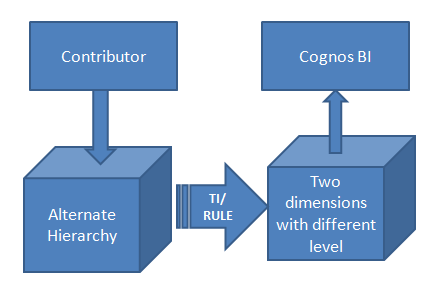
  • Create cube with alterative hierarchy for data input, such as budget and forecast
  • Create cube with two different dimensions with different level for data analysis, such as BI report with framework manager

Saturday, April 19, 2014

How to make use of TM1 dimension default member in report


When using TM1 as Cognos data source, we use framework manager to publish all cubes for Cognos studios, such as report studio, query studio and analysis studio. As Cognos workspace becomes more and more popular, many business users can directly access Cognos workspace with framework manager. However, sometimes we don’t get any data when drag dimensions into data container, and wonder what the reason behind the scene is. Business users are even more confused with such a situation. This document is intended to answer why there is no data sometimes, and how to make cube design more friendly to studios and workspace..


The rule of default member
All studios allow us to drag some of dimensions from a cube. From cube point of view, we submit only partial tuples to TM1 server. Within a partial tuple one or more member references are omitted. Because a complete tuple is required to locate a pint in the cube space, TM1 server engine needs to fill the missing references. This is very much done by applying the following rules for missing member reference:
  1. If the member reference is not selected, use the hierarchy’ default member.
  2. If the member reference is not selected, and no default member is specified, use the total member if there is one
  3. If the member reference is not selected, and no default member is specified, and there is no total number in hierarchy, then the first member will be used.
As seen, it is possible we get no data for some situations as some dimensions are not selected, but with default member. The following dimensions cause no data very often:
  • Year dimension without total year in hierarchy
  • Version dimension without total version hierarchy
  • Scenario dimension without total Scenario hierarchy
  • Account dimension without total account hierarchy
Those dimensions should not build as hierarchy from business point of view. However, image that this first year has not data, the first version has no data, the first scenario has no data, and the first account has no data. This is where business user or even we get confused about data availability.  In addition, given the fact that there are many dimensions in a cube, we need to specify a default member for each dimension hierarchy.

Setup default member
To setup default member, you need to Control cube }HierarchyProperties in architect

Make default member (plus named levels) showing up in studios
Based on instruction from TM1 manual, function RefreshMDXHierachy() can be used to get default member in effect. however it doesn’t work at all. The easy and quick solution is to reboot the TM1 server. The problem is not about republish framework manager, or in cleaning up cache in Cognos. (It looks like studios retrieve metadata information on the fly from TM1). IBM has confirmed this problem and provided solution below:

{

Unable to see change in Analysis Studio after RefreshMDXHierarchy in TM1 (2013-11-16)


Problem(Abstract)

User goes into the }HierarchyProperties cube in TM1 and changes a default member for a dimension, then runs a Turbo Integrator process with RefreshMDXHierarchy('dimension name') in the Prolog tab to refresh, so that the change is visible on the BI side.

Symptom

The RefreshMDXHierarchy does not appear to work, as the new value is not available in Analysis Studio, which requires a service restart.

Cause

BI package is still using the old 'run time model'.

Resolving the problem

Determine whether CQM or DQM (Compatable Query Mode or Dynamic Query Mode) is being used in BI.

-If using CQM, navigate to CognosInstallDIR\data\cqe\RTModels and remove everything within it (folders and files) so that there is an empty RTModels folder.

-If using DQM, then navigate to CognosInstallDIR\data\mfw4j\PMCs and remove everything within it (folders and files) so there is an empty PMCs folder.


NOTE that you will need to stop BI to perform the actions above.
 

Alternatively, try republishing the package via FM.
}
Dynamically setup default member
As default member is very useful, we could enhance it to make it even more business user friendly and report friendly. The typical sample is Fiscal year. If we can dynamically specify fiscal year, then business user will get sales, budget or forecast for needed fiscal year by default. The solution is to use rules to specify data from “system parameter” cube. The “system parameter” cube saves all setting for whole system operation.

System parameter cube below

Use rule to specify default member